UX Systems
A design system and component kit for Amazon's warehouse training product, used to build courses for an organization of 20,000 people across workstations and Zebra handheld scanners.
One system, built by one designer, for every course, role, and device.
My Role
I was the sole designer for Learning and Development at AMXL, the part of Amazon that delivers its largest items, like furniture and appliances. Warehouse workers train right on the devices they use every day.
I designed the system, not the courses. Instructional designers build every course in Articulate Storyline from the templates, components, animations, and 3D assets I created, and they decide the learner's path. Every piece had to work in any order, for any lesson, on any device.

Old System
The problem
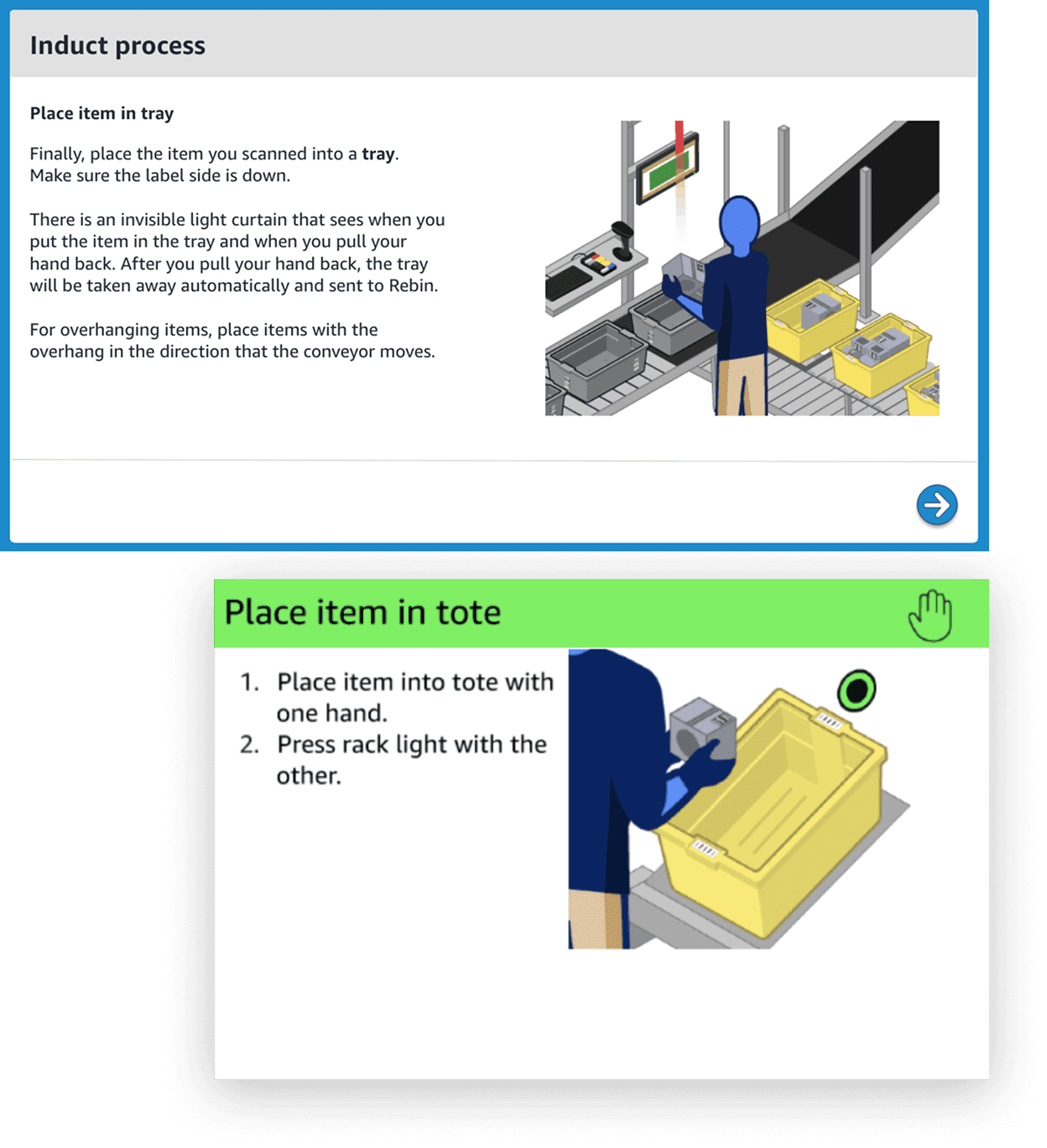
The instructional designers had no templates, components, or images of their own. They borrowed from other Amazon teams, so every course looked different and workers saw a new layout in every lesson. Nothing tied the training together visually, and there were no animations or interactive content to build from.
The fix had to serve two users at once: instructional designers who needed to build any lesson quickly, and warehouse workers reading on a cart laptop or a small scanner screen, often wearing gloves, under bright lights, on slow networks.
The solution
A template system, UI kit, and asset library built on Amazon's brand standards for its operations teams. Instructional designers pull layouts, components, icons, animations, 3D assets, and video straight from the kit. Most training happens at a workstation, a rolling cart with a laptop that workers use on the warehouse floor, and the same system extends to handheld scanners.
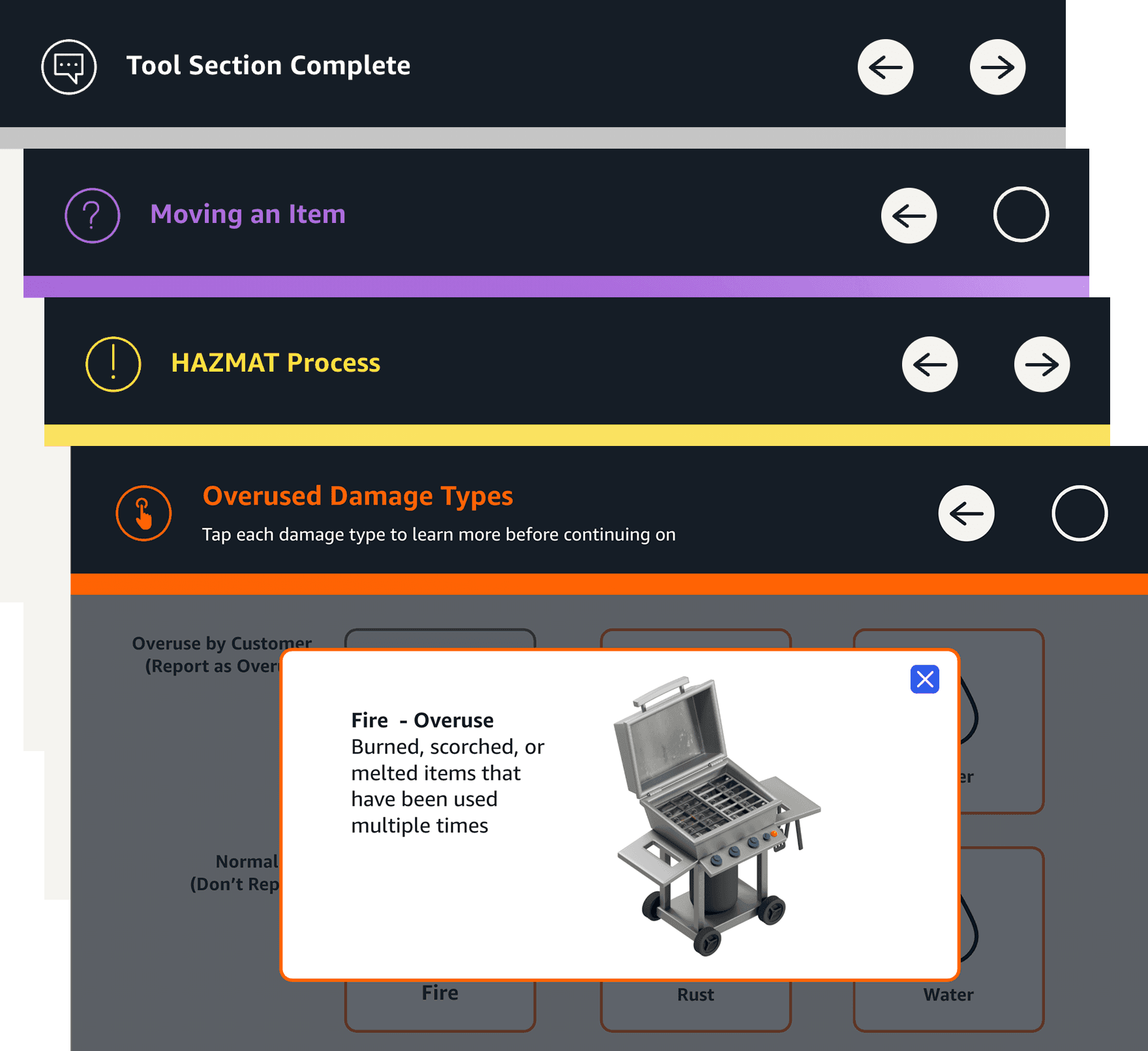
Top bar variants, one for each learning moment.






What I built
A reusable UI kit and 3D library that gives instructional designers a complete building system. The kit covers layout hierarchy, type scale, spacing, navigation, feedback states, icon style, and motion, so every course they build feels polished and consistent on any content type or device.
To build a course, they start from a template matched to the moment, drop in components, add assets from the library, and publish to the laptop or scanner. They decide what to teach, and the system handles how it looks and behaves.
Every color has a job.
Each color maps to a learning moment and comes from Amazon's brand palette, so learners know what kind of slide they're on before they read a single word.
Color is never the only signal. Every slide type pairs its color with an icon and a mode indicator, so the meaning holds up for color blind learners and under harsh warehouse lighting.
Default - Squid Ink
Action - Prime Blue
Interactive - Orange
Safety - Yellow
Quiz - Purple
Correct - Green
Incorrect - Red
Navigation that sets expectations
The top bar stays the same on every slide. Its color and icon tell learners what kind of moment they're in: information, safety, practice, feedback, or quiz.

An icon on the left identifies the slide type. Arrows on the right move learners forward or back. The center indicator shows the current mode, so learners always know where they are on the laptop or the handheld scanner.
Icons that separate meaning from navigation
Two icon sets work together. Communication icons explain the moment, and navigation icons move the learner through it.
Icon colors come from the same brand palette, so every slide type carries a signal learners recognize instantly.
Communication icons Sets expectations at a glance across info, safety, practice, and feedback moments.








Navigation Icons Standardizes how learners progress, revisit, or confirm actions.






Callouts that don't break the flow
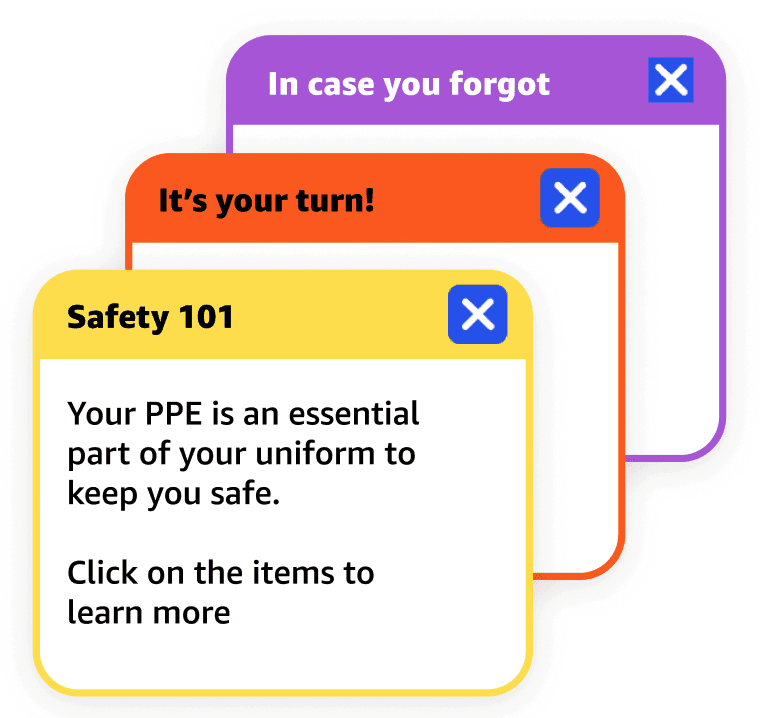
Short notes surface reminders, prompts, and course info without interrupting the lesson. Each callout uses the same brand colors, so the visual language stays consistent from navigation to content.
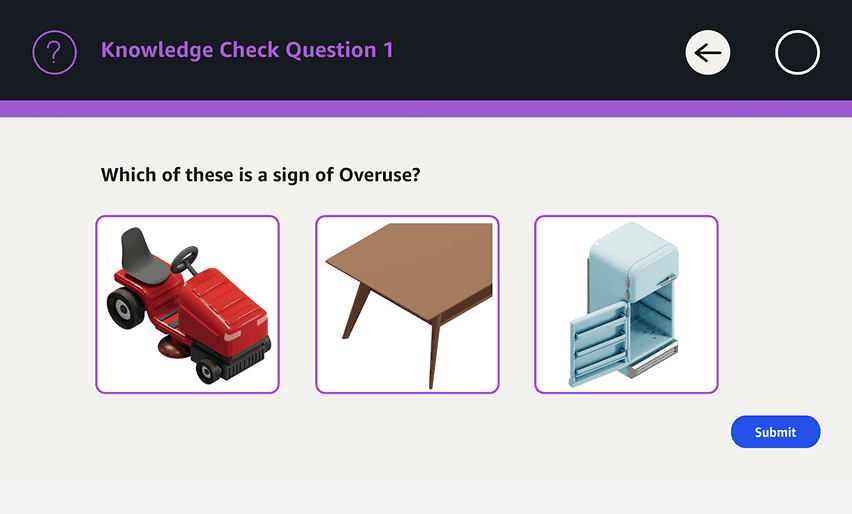
Knowledge checks that feel like product UX
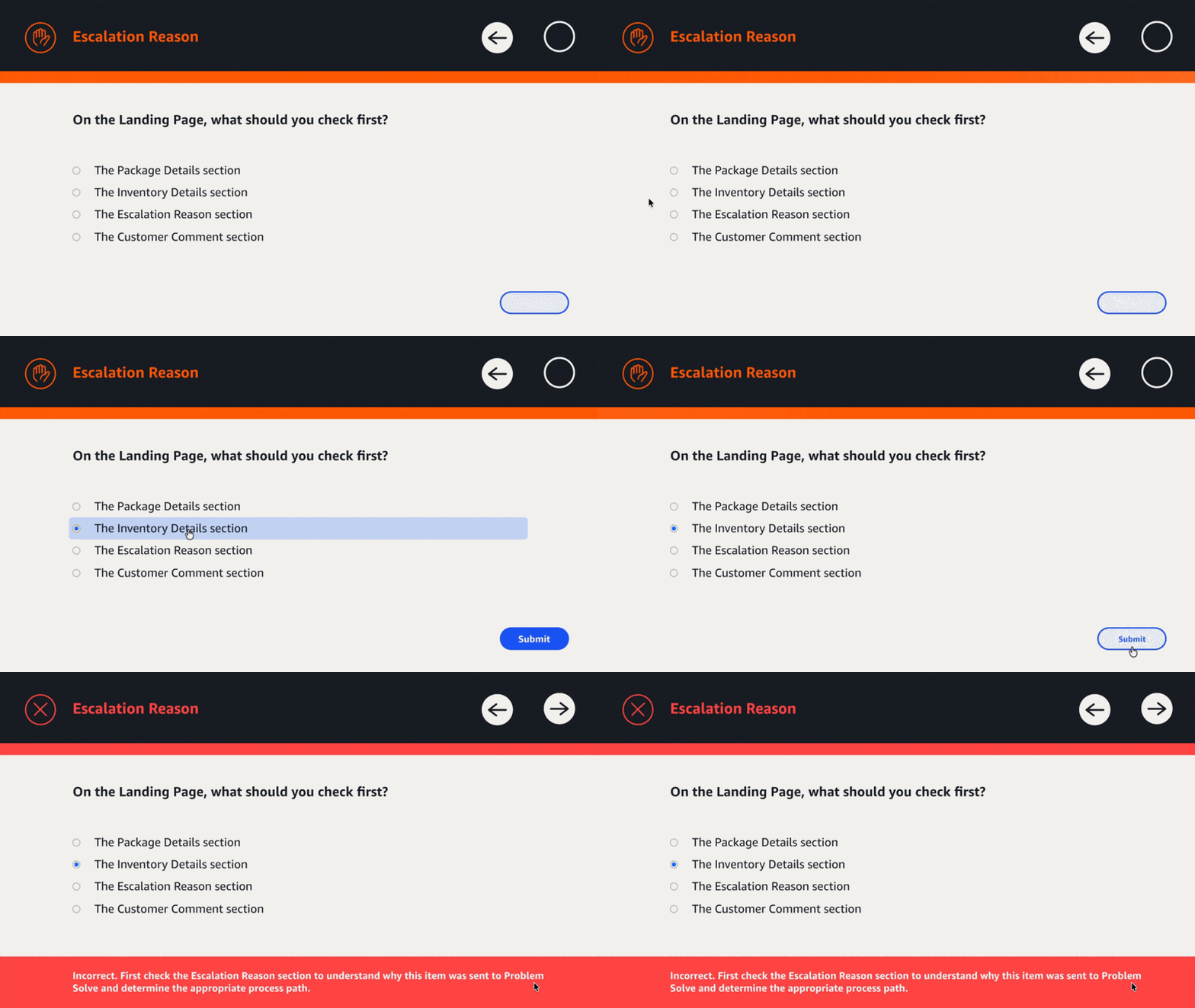
Answer choices use 3D rendered objects, so learners compare what they see instead of reading through dense text. Feedback states, button hierarchy, and visual cues stay consistent across every course and device, so learners always know what to do next and what just happened. Idle animations keep screens alive between interactions, and every button on the laptop responds on hover.
Correct state
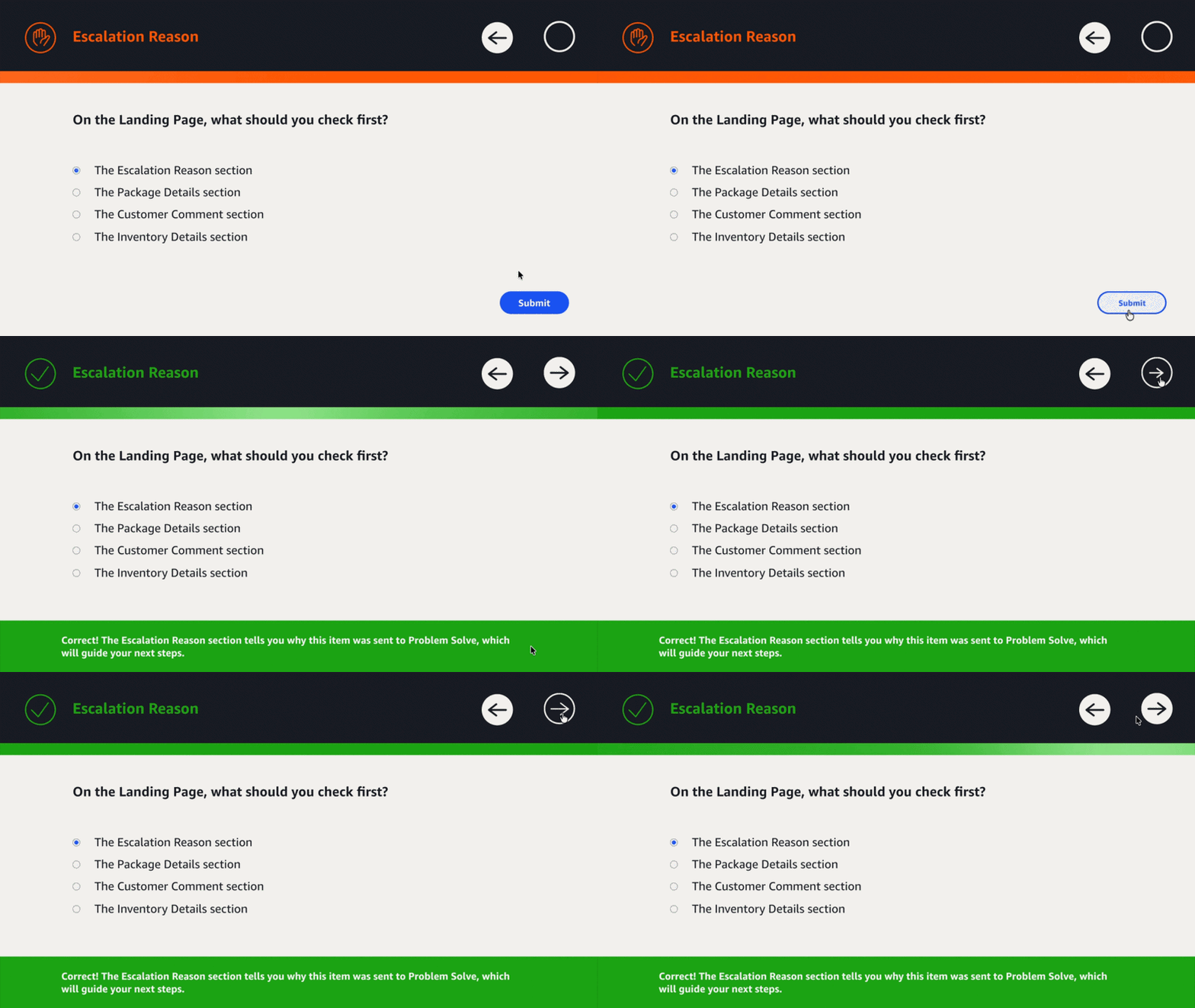
Incorrect state

Motion System
Like color and icons, motion was a system decision, not a styling choice. Subtle animation reinforces hierarchy, responsiveness, and spatial clarity. Every behavior was built as a reusable animated asset, exported at 24fps, and governed by shared timing and easing rules so it stays cohesive across every lesson.
Storyline only supports animated GIFs, so every behavior shipped that way. With Lottie, these would be lightweight vector animations triggered by state.

System Rule
Micro animations resolve in 550 to 600ms, with a 15 second idle loop. Entry accelerates, then settles softly, so motion stays subtle and never distracts.
Icon Rotation
Duration: 575ms at 24fps. Easing: cubic-bezier(0.82, 0.00, 0.63, 1.00). Accelerated entry with soft deceleration for a non-mechanical finish.
System Rule (Interactive Motion)
Interactive feedback resolves faster than ambient motion, in 300 to 350ms. Directional entry reinforces forward progress, so every interaction feels responsive and spatial.
Arrow Entry (Representative Motion)
Duration: ~333ms (24fps) Easing: cubic-bezier(0.66, 0.00, 0.34, 1.00) Behavior: Arrow enters from left → settles center → exits right, reinforcing forward movement
Scaled to the handheld
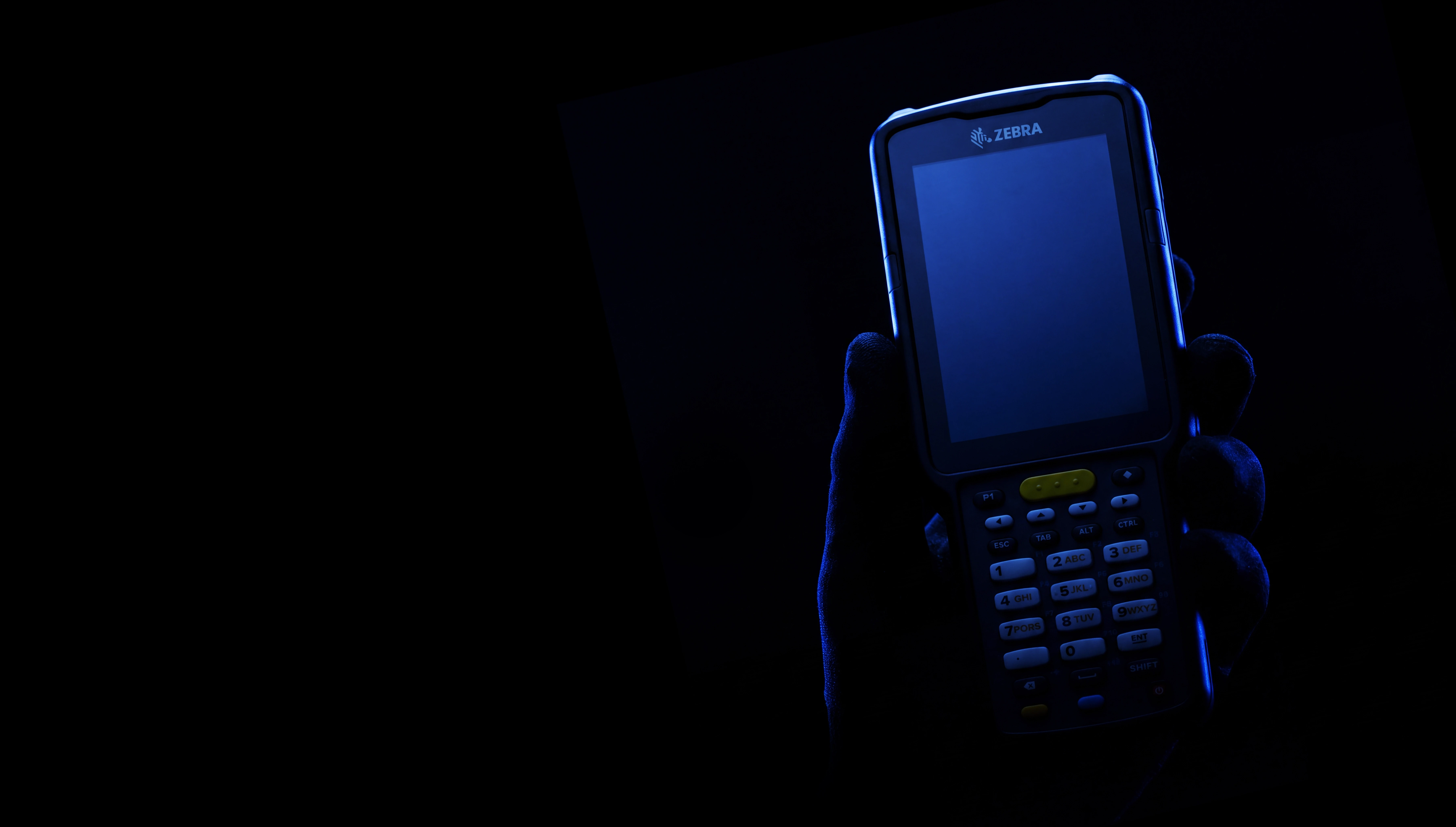
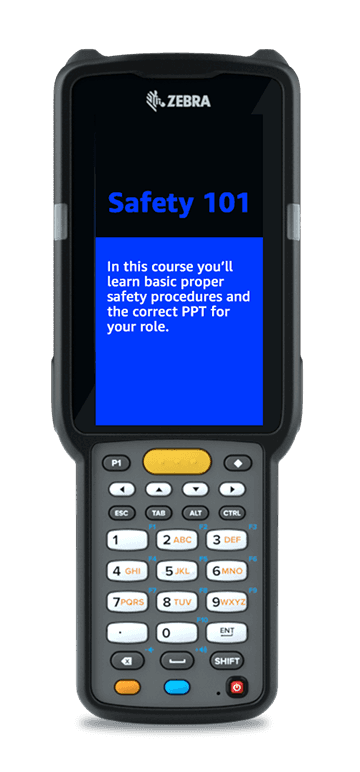
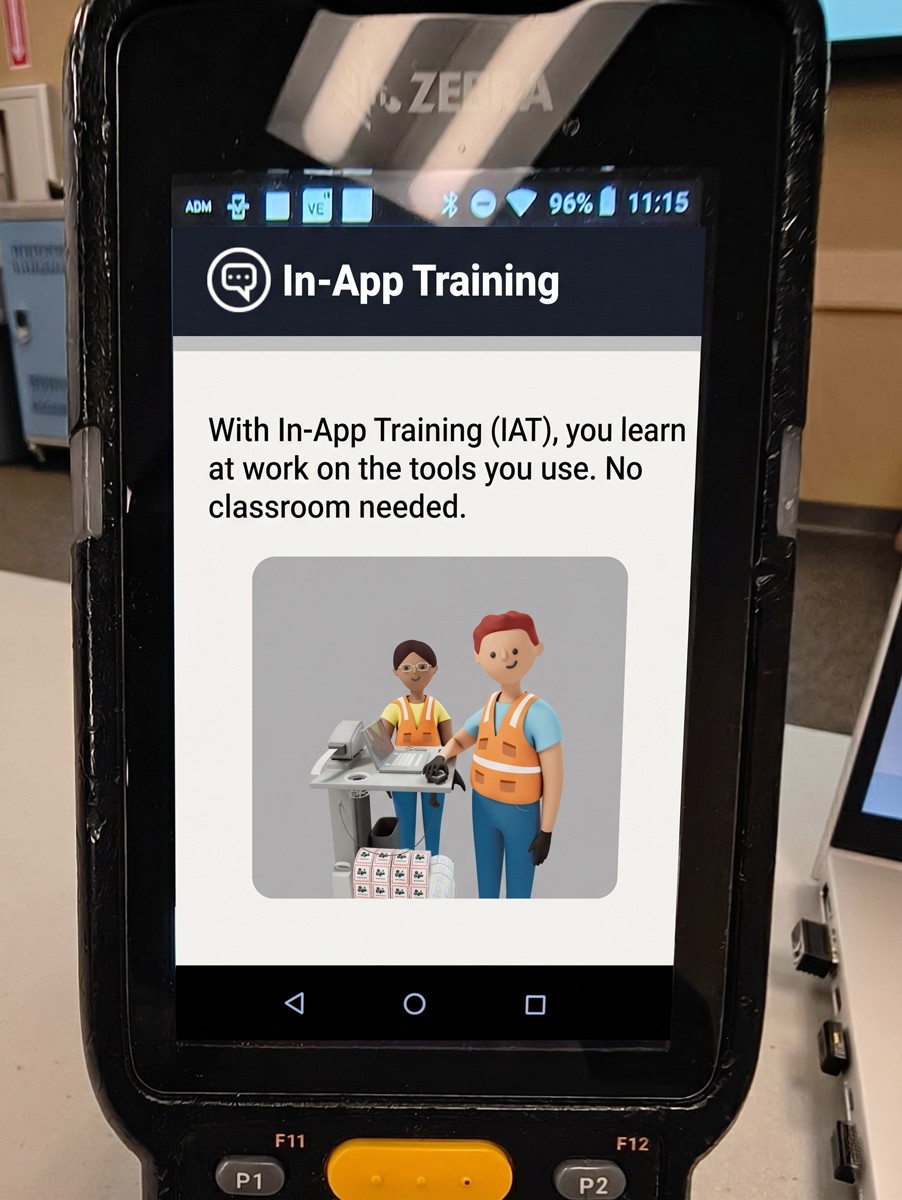
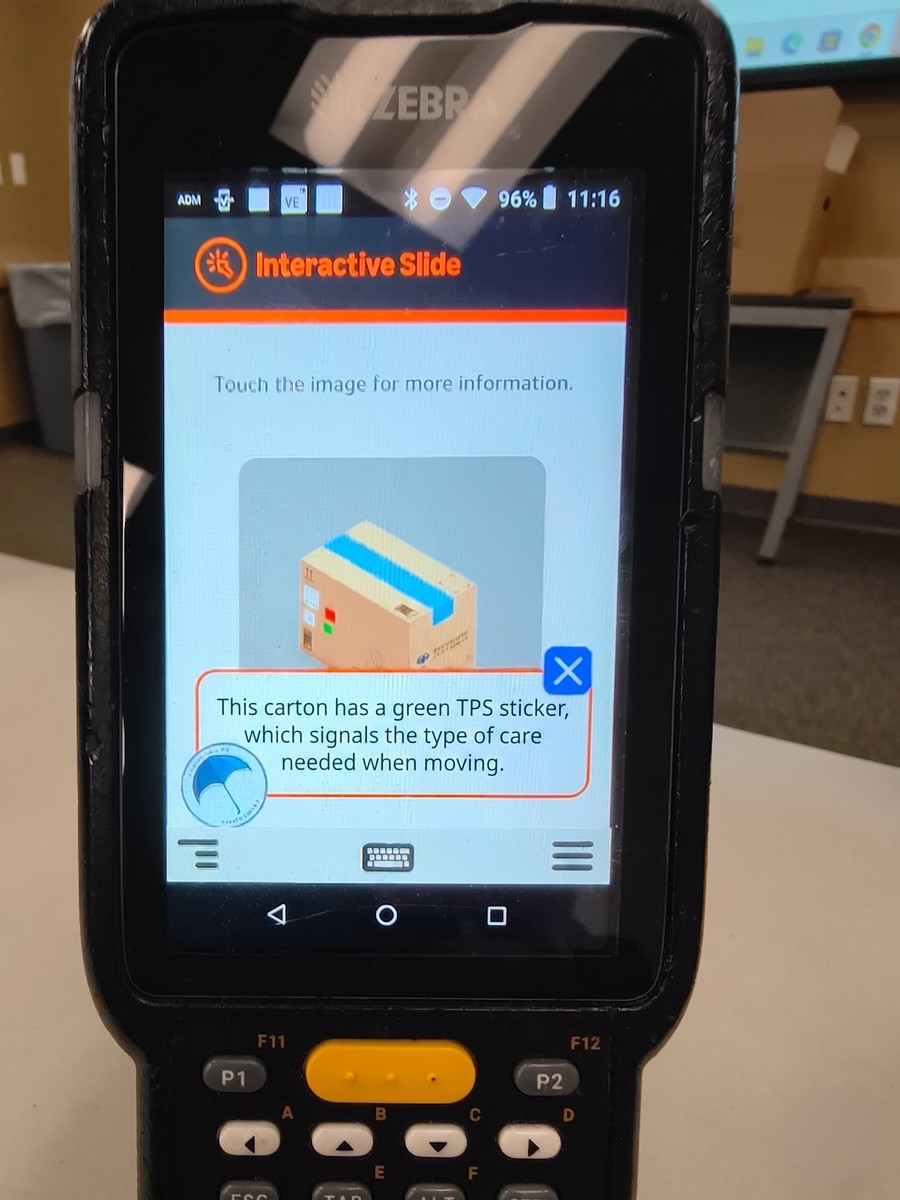
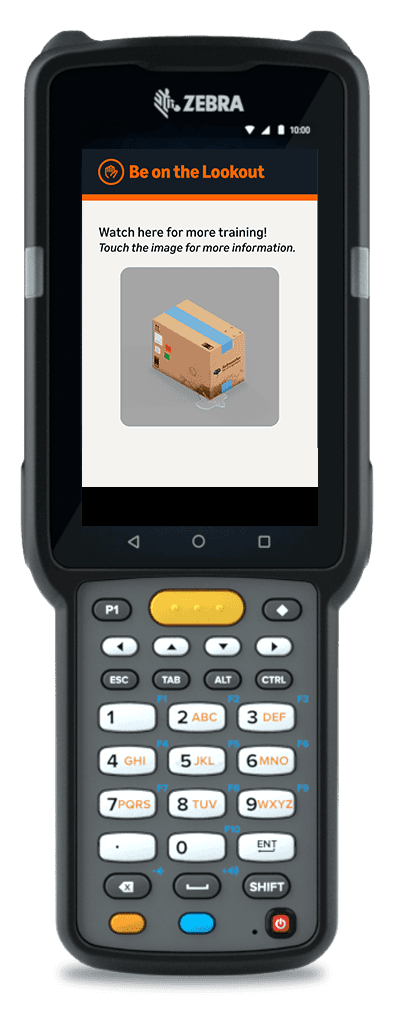
The same system extends to the handheld barcode scanners workers carry on the warehouse floor. Small screens, gloved hands, and bright overhead light meant rethinking touch targets, type sizes, and navigation while keeping the visual language identical to the laptop.



Built once, used everywhere
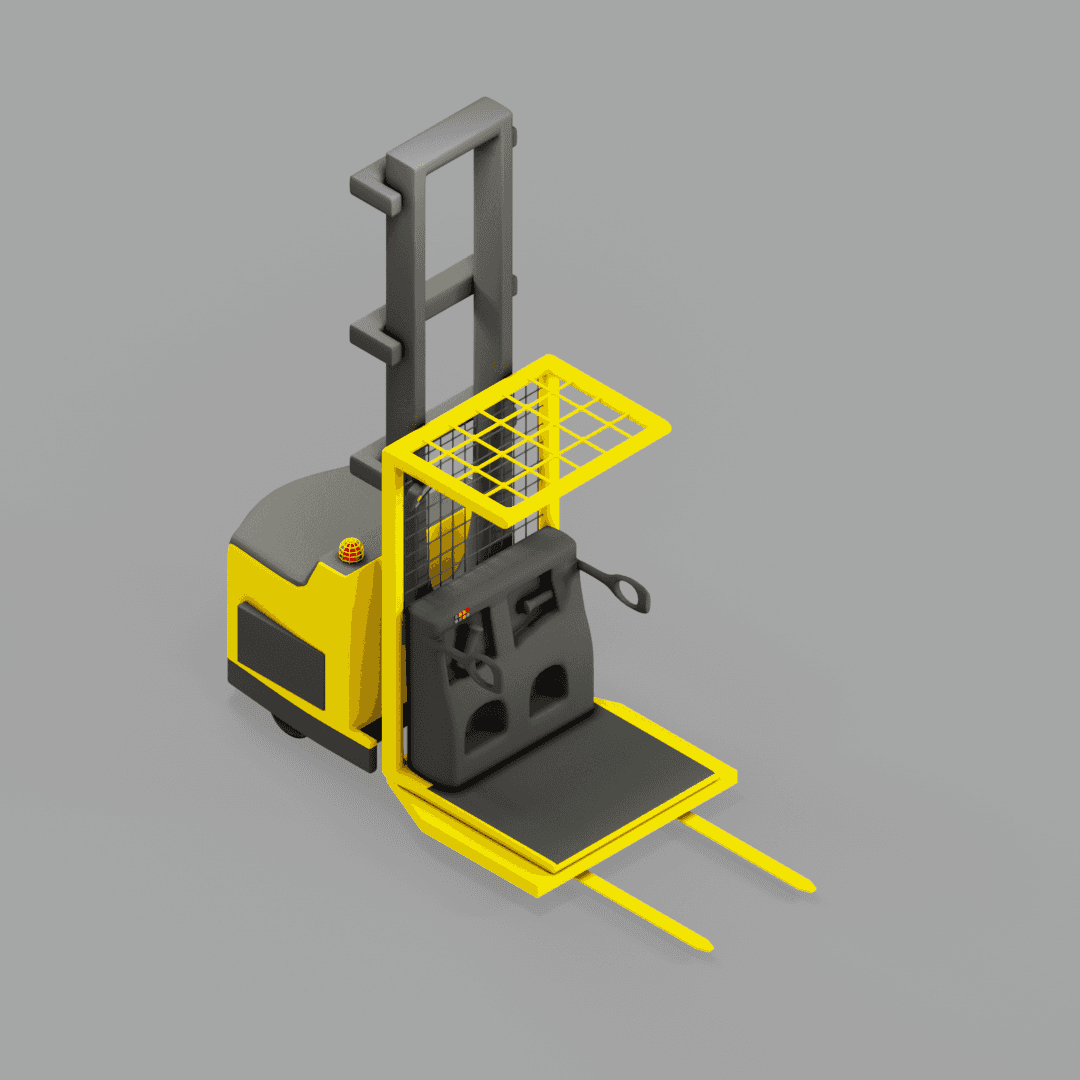
As the only designer supporting an organization of 20,000 people, I had to build efficiency into every asset, and 3D made that possible. One scene could produce dozens of outputs: move the camera for a new image, or swap an object for a new scenario, without rebuilding. The same library served on screen lessons, full courses, and printed materials across the entire training catalog.
Taken further with Spline
I brought the same 3D models into Spline, a tool for building interactive 3D, so learners could explore them inside the training itself. I was the first designer to bring Spline into Amazon, turning the assets that defined the training into objects learners could rotate and examine in real time.

One system. Every screen.
Courses built on the system raised learner engagement to 4.6 out of 5, up from 3.0 and above the team's goal of 4.0.
More engaging training helped workers learn faster,
saving $7M in training time in 2025.
Handheld scanner
Workstation